
How to Connect Bulkdata.ai MCP to Claude in 7 Steps (No Code Required)
Learn how to connect the Bulkdata.ai MCP server to Claude in about a minute. Search B2B contacts and company profiles in plain English, with no code.
Your AI assistant is only as useful as the data it can reach. Out of the box, Claude can’t tell you which UK fintechs fit your ideal customer profile, or who their finance leaders are. Connect it to Bulkdata.ai and it can.
Bulkdata.ai gives Claude direct access to a large database of B2B contacts and company profiles, through an MCP (Model Context Protocol) connector. Once it’s connected, you ask questions in plain English and Claude queries the data for you.
This guide walks through the setup. It takes about a minute, and you don’t need to write any code. There’s also a short video walkthrough if you’d rather watch.
What you’ll need
- A Claude account
- A work email address for Bulkdata.ai sign-in
- The Bulkdata MCP server URL:
https://tools.bulkdata.si/mcp
Step 1: Open Customize, then Connectors
In Claude, open Customize from the left sidebar and select the Connectors tab. This is where every connector you add, from Google Drive to custom MCP servers, is managed.
Step 2: Add a custom connector
Click + Add in the top right, then choose Add custom connector.
Step 3: Name it and paste the MCP URL
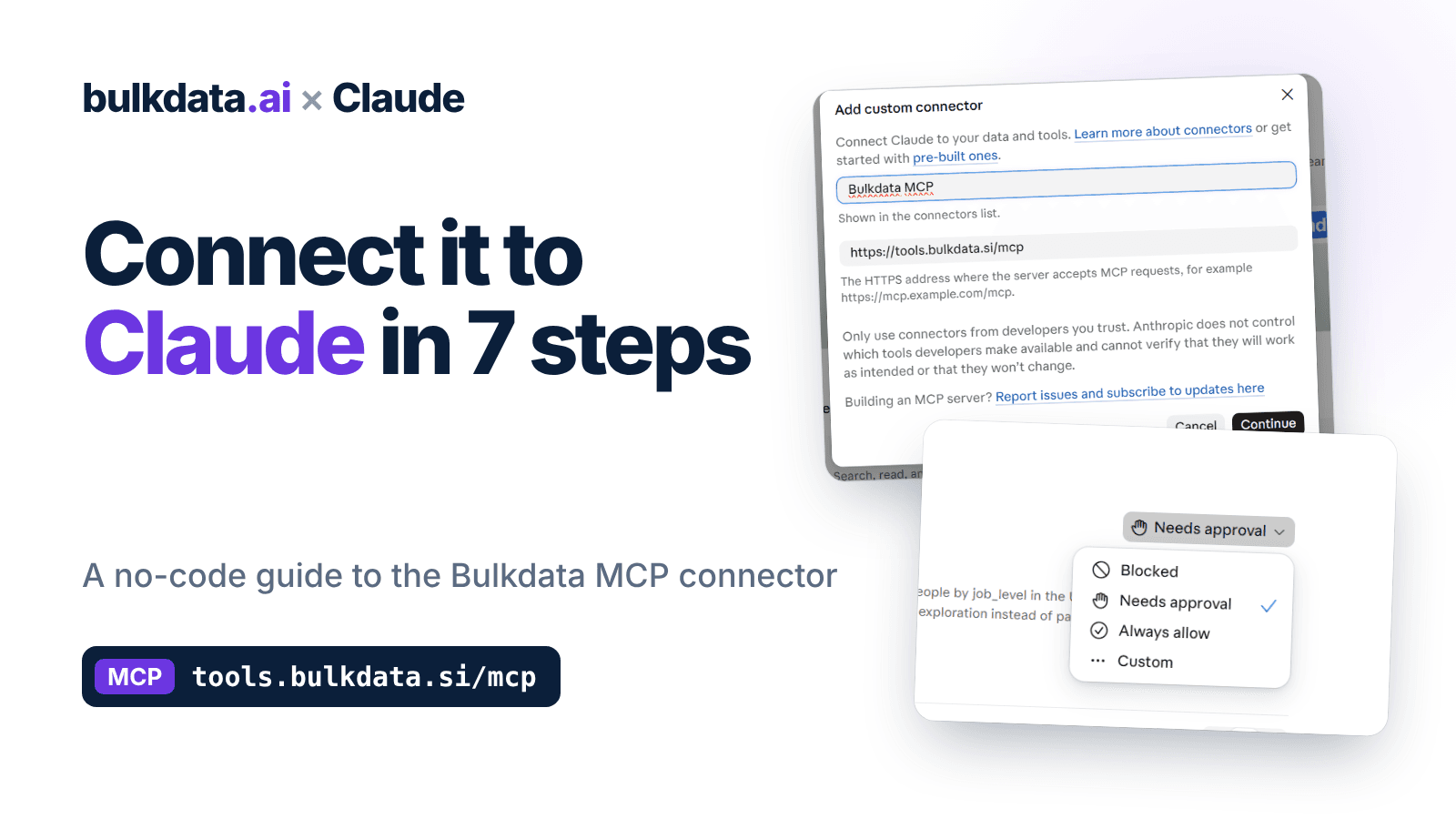
Give the connector a name you’ll recognise, such as Bulkdata MCP. In the server URL field, paste https://tools.bulkdata.si/mcp, then click Continue. Claude detects the server’s sign-in method automatically, so you can leave the defaults as they are.
Step 4: Click Connect
You’ll land on the connector’s page, which says you’re not connected yet. Click Connect to start signing in to Bulkdata.
Step 5: Enter your work email
The Bulkdata consent screen lists what the connected assistant will be able to do:
- Search B2B contacts (names, titles, emails, phones)
- Search company profiles and firmographics
- Run counts and aggregations for market sizing
- Unlock contact details you approve, using your credits
Enter your work email and click Email me a sign-in code. There’s no password to set.
Step 6: Enter the 6-digit code
Check your inbox for the 6-digit code, enter it, and click Verify and allow.
Step 7: Set tool permissions
Back in Claude, the Bulkdata MCP page now lists its tools, including read-only tools for counts and breakdowns, available data fields and company lookups. Under Read-only tools, open the permission menu and choose how Claude may use them:
- Needs approval: Claude asks each time.
- Always allow: Claude uses read-only tools without asking, which is faster for research.
- Blocked: Claude can’t use them.
For day-to-day prospecting and market sizing, Always allow on the read-only tools keeps things moving.
You’re connected: what to ask Claude
Start a new chat and try prompts like these:
- “Find CFOs at UK fintechs of a similar size to our best customers.”
- “How many large software companies are there in the UK?”
- “Break down UK companies by industry.”
For counts and market sizing, Claude can use Bulkdata’s counts and breakdowns tool, which returns exact figures without pulling full records. Contact details are only unlocked when you approve them, using your credits.
Troubleshooting
- Didn’t get the code? Click Send a new code on the verification screen.
- Connector shows as not connected? Open Customize → Connectors, select Bulkdata MCP, and click Connect again.
- Claude asks for approval every time? Change the read-only tools to Always allow in the connector’s permissions.
- Only add connectors from developers you trust. Claude reminds you of this when you add any custom connector.
Watch the walkthrough
The short video covers all seven steps: https://youtu.be/OOQzOEWkQO4
Ready to try it?
Connect Bulkdata.ai to Claude and put your B2B data one question away.